
Create an API Key
API keys allow you to authenticate requests to the OpsFusion API. Follow this guide to create a key and choose its roles.
Before You Begin
Section titled “Before You Begin”Ensure you have:
- Account Owner or Account Admin permissions in your OpsFusion organization
- A clear understanding of where you’ll use the API key (monitoring tool, script, etc.)
Your account can have up to 10 API keys. If you reach the limit, delete a key you no longer use before you create another.
Step 1: Navigate to API Keys
Section titled “Step 1: Navigate to API Keys”- Click on your name in the top-right corner
- Select Account from the dropdown
- Click on the API Keys tile

Step 2: Create API Key
Section titled “Step 2: Create API Key”- On the API Keys page, click the Create API Key button.
- Fill in the API key details
- Name - A descriptive name (2-100 characters) to identify this key’s purpose and location
- Roles - Select one to three roles to grant the key
- Click Create
| Role | Access |
|---|---|
| Admin | Full access to every API endpoint, including sending alerts |
| Read Only | Read access: the GET endpoints only |
| Alert Push | Send alerts only, using the two push endpoints |
You can select up to three roles on one key. See Authentication and Roles for exactly which endpoints each role can call.
Which Role Should I Choose?
Section titled “Which Role Should I Choose?”| Use case | Role |
|---|---|
| Monitoring or alerting tools that send alerts to OpsFusion | Alert Push |
| Reporting, dashboards, and exports | Read Only |
| Automation that manages teams, users, invites, or alerts | Admin |
Give each key the fewest roles it needs. If a key leaks, a narrow role limits the damage. Use a separate key for each tool so you can delete one without affecting the others.
Step 3: Copy and Store the API Key
Section titled “Step 3: Copy and Store the API Key”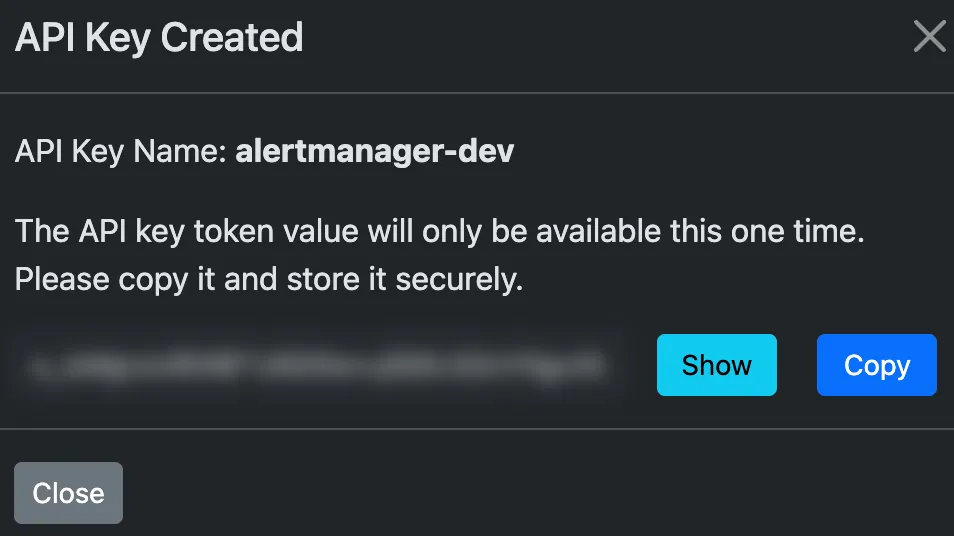
What’s Next?
Section titled “What’s Next?”Now that you have an API key:
- Review the Send Alerts documentation to learn how to push alerts
- Read Authentication and Roles to learn how requests are authenticated
- Browse the API Overview to see what else the API can do
Troubleshooting
Section titled “Troubleshooting”401 Unauthorized Error?
- The
Authorizationheader is missing or empty. Check that your tool sends it.
403 Forbidden Error?
- Verify the API key is copied correctly and in full (no extra spaces)
- Check that the key hasn’t been deleted
- Check that you’re using the correct account ID in the URL. A key only works for its own account.
- Check that the key has a role that allows the endpoint. For example, an Alert Push key can’t call
GETendpoints. - Check that your account is active
A change doesn’t take effect right away?
- Deleting a key or changing its roles can take a few minutes to apply.
Can’t find API Keys page?
- Ensure you have Account Owner or Account Admin permissions
- Contact your organization administrator if you need access
Can’t create a new key?
- You may have reached the limit of 10 keys. Delete a key you no longer use.