
Invite Users
Once your account is created, you can invite colleagues to join your OpsFusion organization. Invited users will have access to teams and schedules based on their assigned roles.
Before You Begin
Section titled “Before You Begin”Make sure you have:
- Account Owner or Account Admin permissions in your organization
- Email addresses of the people you want to invite
- Decided on the appropriate role for each invitee
User Roles
Section titled “User Roles”OpsFusion uses role-based access control with four distinct roles:
| Role | Permissions | Best For |
|---|---|---|
| Account Owner | Full access: billing management, subscription control, all admin permissions | Account creator, financial stakeholders |
| Account Admin | Manage users, teams, schedules, API keys, send invitations (no billing access) | Technical administrators, DevOps leads |
| Team Admin | Create and manage teams, add/remove team members, manage on-call schedules, view team alerts | Team leads, engineering managers |
| Standard User | View assigned teams and schedules, acknowledge/resolve team alerts | On-call engineers, individual contributors |
Step 1: Access the User Management Page
Section titled “Step 1: Access the User Management Page”- Click on your profile icon in the top-right corner
- Select Account from the dropdown menu
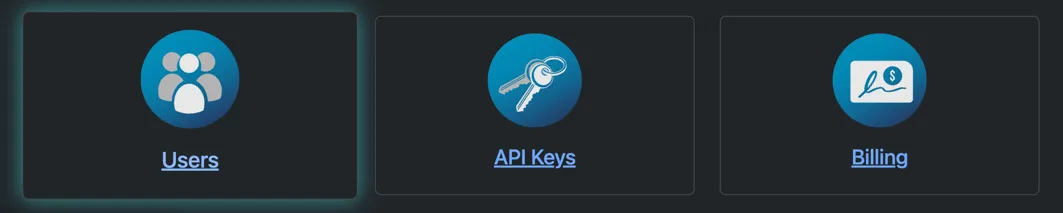
- Click on the Users tile
Step 2: Invite a User
Section titled “Step 2: Invite a User”- On the Users page, click the Invite User button in the top-right corner
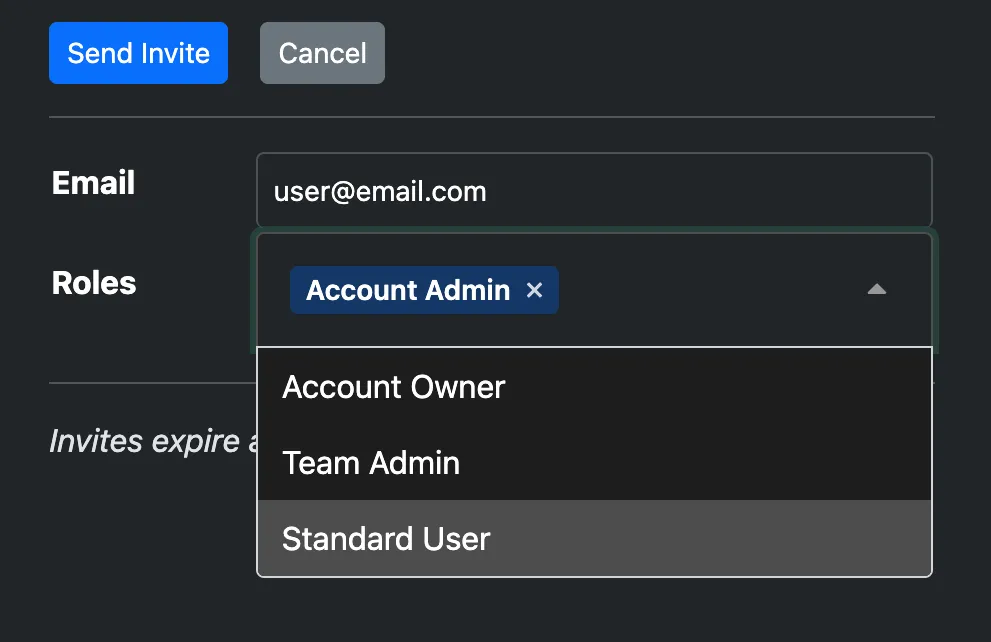
- In the invitation form, provide:
- Email - The invitee’s work email
- Roles - Select the appropriate roles from the dropdown menu
- Click Send Invite
The user will receive an email with instructions to join your organization.
Step 3: Invited User Accepts
Section titled “Step 3: Invited User Accepts”The invited user will:
- Receive an email invitation with a secure invitation link
- Click the invitation link in the email
- Create their OpsFusion account (or log in if they already have one)
- Set their password following the same requirements as account creation
- Verify their email address
- Automatically join your organization with the assigned role
Cancel Invite
Section titled “Cancel Invite”To cancel a pending invitation:
- In the Users list, click on Invite Pending status for the the user you want to cancel
- Click the Delete button and confirm
What’s Next?
Section titled “What’s Next?”After inviting your team members:
- Create teams - Organize users by service, department, or responsibility area
- Add users to teams - Assign accepted users to the appropriate teams
- Set up on-call schedules - Define rotation patterns for each team
Troubleshooting
Section titled “Troubleshooting”User didn’t receive the invitation?
- Verify the email address is correct
- Ask them to check their spam/junk folder
- Have them create an account with the invite’s email address and accept in the OpsFusion dashboard
Can’t invite users?
- Ensure you have Account Admin permissions
- Check that you haven’t reached your organization’s user limit