
Create an Account
Creating an OpsFusion account is quick and straightforward. Follow these steps to get started.
Step 1: Navigate to the Sign-Up Page
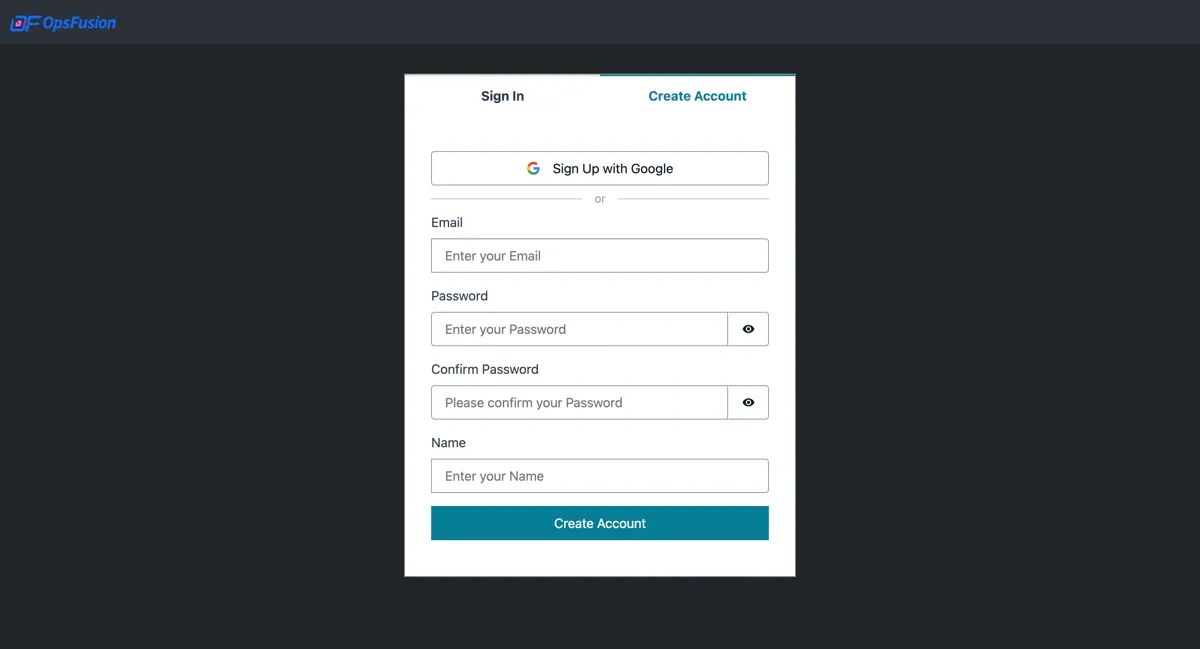
Section titled “Step 1: Navigate to the Sign-Up Page”Visit the Sign-Up Page and select the Create Account tab.
Step 2: Choose Your Sign-Up Method
Section titled “Step 2: Choose Your Sign-Up Method”OpsFusion offers two ways to create your account:
Option 1: Sign Up with Google
Section titled “Option 1: Sign Up with Google”Click the Sign Up with Google button to use your Google account for authentication. This is the fastest way to get started.
Option 2: Sign Up with Email
Section titled “Option 2: Sign Up with Email”Fill in the registration form with the following details:
- Email - Your work email (this will be your username and must be unique)
- Password - Choose a strong password that meets the requirements below
- Name - Your first and last name
Password Requirements
Section titled “Password Requirements”Your password must include all of the following:
- Minimum 8 characters in length
- At least one uppercase letter (A-Z)
- At least one lowercase letter (a-z)
- At least one number (0-9)
- At least one special character (e.g., !@#$%^&*)
Step 3: Verify Your Email (Email Sign-Up Only)
Section titled “Step 3: Verify Your Email (Email Sign-Up Only)”Note: Email verification is only required if you signed up with email. If you used Sign Up with Google, you can skip this step and proceed directly to Step 4.
For Email Sign-Up Users
Section titled “For Email Sign-Up Users”After submitting the form:
- Check your email inbox for a verification message from OpsFusion
- Click the verification link in the email
- You’ll be redirected to the OpsFusion dashboar
Step 4: Create or Join an Account
Section titled “Step 4: Create or Join an Account”After signing up and verifying your email (if using email sign-up), you’ll need to either create a new account or accept an invitation to an existing account.
Option 1: Create a New Account
Section titled “Option 1: Create a New Account”If you’re setting up OpsFusion for your organization, you’ll create a new account:
- Enter your Account Name - This is your organization or company name
- Click Create Account
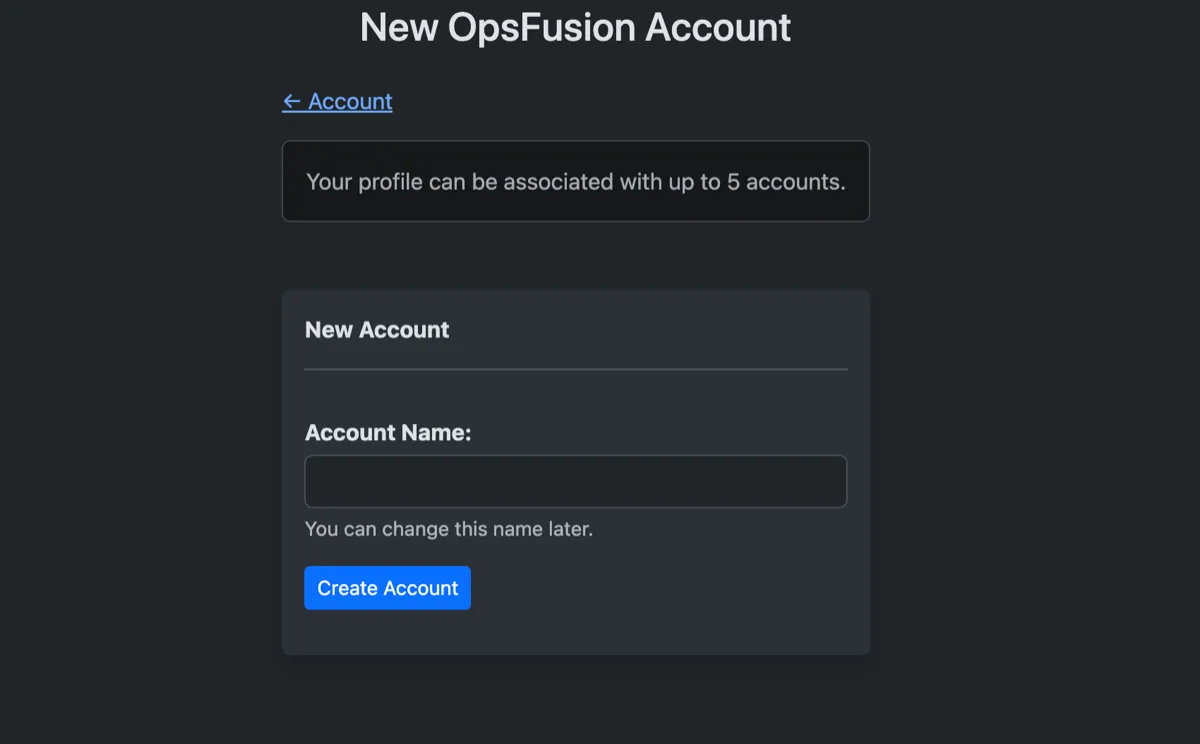
Once created:
- You’ll be automatically logged in to your OpsFusion dashboard
- You’re assigned the Account Owner role with full administrative access
- You can start setting up teams, inviting users, and configuring schedules
Option 2: Accept an Invite to an Existing Account
Section titled “Option 2: Accept an Invite to an Existing Account”If someone has already invited you to their OpsFusion account:
- You’ll see a list of pending account invitations
- Select the account you want to join
- Click the Accept Invite button
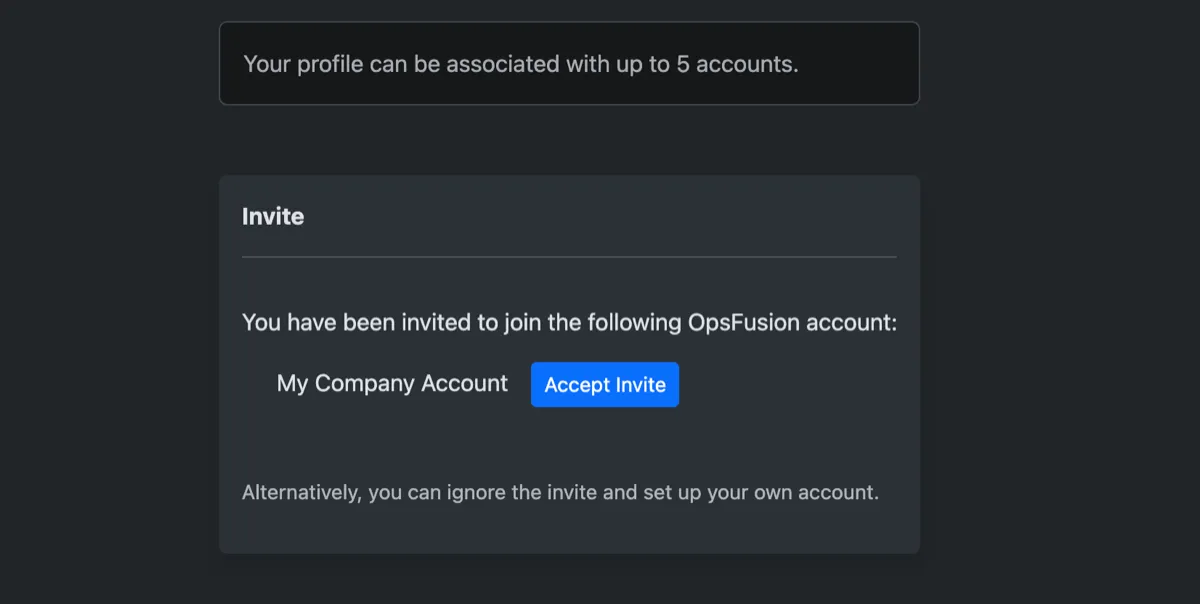
Once you accept:
- You’ll join the existing account with the role assigned by the inviter
- You’ll have access to the teams and schedules within that account
- You can be added to on-call rotations
What’s Next?
Section titled “What’s Next?”Now that your account is set up, follow these steps to get OpsFusion fully configured:
Recommended Setup Workflow
Section titled “Recommended Setup Workflow”- Invite users - Add colleagues who will participate in on-call rotations
- Create teams - Organize users by service, department, or responsibility area
- Setup on-call schedules - Define rotation patterns and coverage hours
- Setup notifications - Configure how you receive alerts
- Create API keys - Generate authentication tokens for sending alerts
- Integrate monitoring tools - Connect your monitoring systems to send alerts
Troubleshooting
Section titled “Troubleshooting”Didn’t receive the verification email?
- Check your spam/junk folder for emails from OpsFusion
- Verify you entered the correct email address during registration
- Wait a few minutes - email delivery can sometimes be delayed
- Request a new verification email from the login page
- Add invite@opsfusion.cloud to your email whitelist
- Contact support@opsfusion.cloud if the issue persists
Password requirements not met?
- Ensure your password is at least 8 characters long
- Include at least one uppercase letter (A-Z)
- Include at least one lowercase letter (a-z)
- Include at least one number (0-9)
- Include at least one special character (e.g., !@#$%^&*)
- Avoid using only common words or patterns
Email address already in use?
- This email is already registered with OpsFusion
- Try logging in instead of creating a new account
- Use the “Forgot Password” link if you don’t remember your password
- Contact support if you believe this is an error