
Enterprise Single Sign-On
Enterprise Single Sign-On (SSO) lets your team sign in to OpsFusion using your company’s own identity provider (via OIDC or SAML), instead of a separate OpsFusion password. Once configured, your organization gets its own unique OpsFusion login URL, and your users authenticate the same way they already do for your other company applications.
Before You Begin
Section titled “Before You Begin”Make sure you have:
- Account Owner or Account Admin permissions in your organization
- Administrator access to your company’s identity provider (Okta, Azure AD / Entra ID, Google Workspace, OneLogin, Auth0, ADFS, or any other SAML or OpenID Connect provider)
- Decided whether you’ll connect using OIDC or SAML (see below)
What You Get
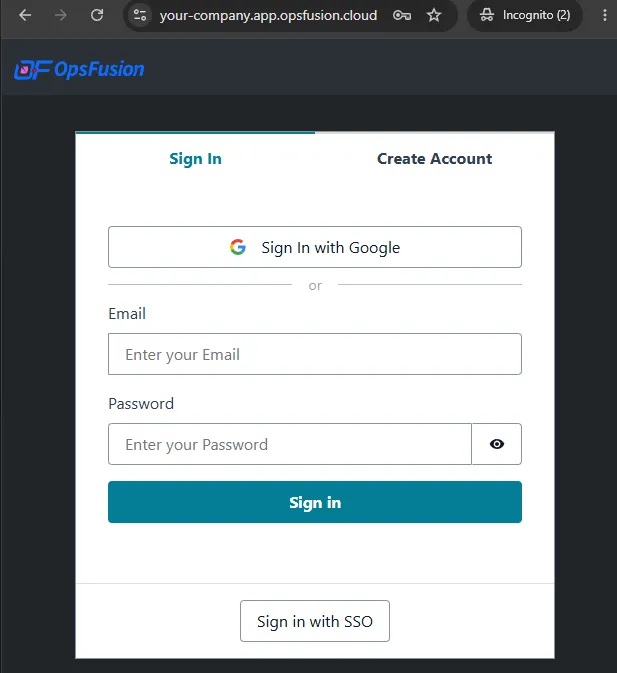
Section titled “What You Get”- Your own OpsFusion Login URL - a dedicated sign-in address for your organization, in the form
https://your-company.app.opsfusion.cloud - A “Sign in with SSO” option at that URL, so your users authenticate through your identity provider instead of an OpsFusion-specific password
- Your organization’s regular sign-in page (
https://app.opsfusion.cloud) keeps working as-is for anyone not using SSO
Configuring Enterprise SSO
Section titled “Configuring Enterprise SSO”- Go to the Users page
- Click Configure, then Enterprise Single Sign-On
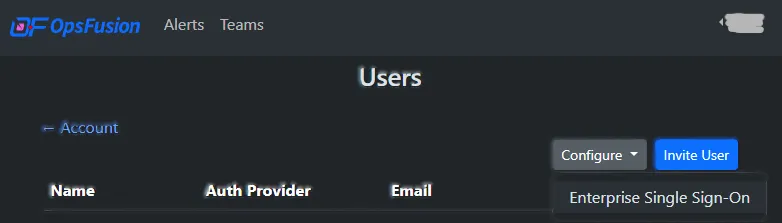
- Choose an OpsFusion Login URL - this becomes the unique subdomain your organization signs in at (
https://your-choice.app.opsfusion.cloud) - Choose your Protocol - OIDC or SAML - and fill in the fields described below
- Click Save
After your first save, a green confirmation appears at the top of the Users page with a link to your new Login URL, so you can try it right away.
Callback URL
Section titled “Callback URL”Whichever protocol you choose, your identity provider needs a callback URL (also called a redirect URI) to send users back to after they sign in. When setting up OpsFusion as an application in your identity provider, use:
| Protocol | Callback URL |
|---|---|
| OIDC | https://login.opsfusion.cloud/oauth2/idpresponse |
| SAML | https://login.opsfusion.cloud/saml2/idpresponse |
This URL is the same for every OpsFusion customer - it does not change based on your organization or Login URL.
OIDC Setup
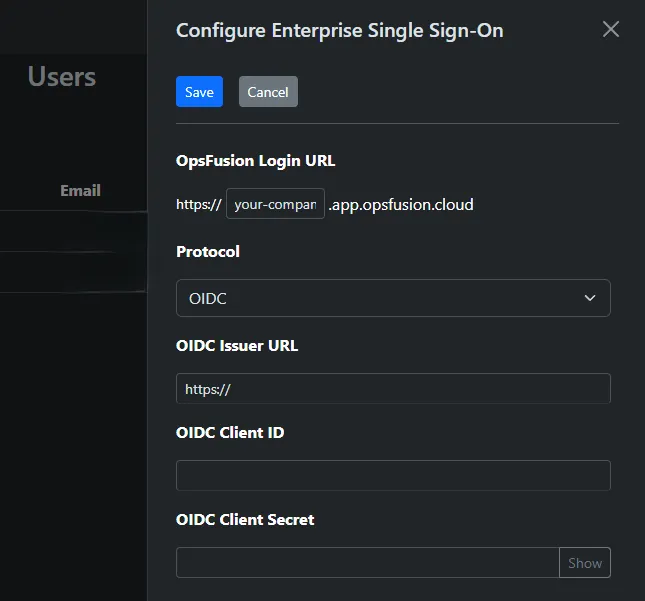
Section titled “OIDC Setup”You’ll need the following from your identity provider’s OIDC application settings:
| Field | Description |
|---|---|
| OIDC Issuer URL | The base URL of your identity provider’s OIDC service |
| OIDC Client ID | The client ID generated for the OpsFusion application |
| OIDC Client Secret | The client secret generated for the OpsFusion application |
Most identity providers send the attributes OpsFusion needs by default, using these standard OpenID Connect claim names:
| OpsFusion Field | OIDC Claim |
|---|---|
| Email (required) | email |
| Full Name | name |
| First Name | given_name |
SAML Setup
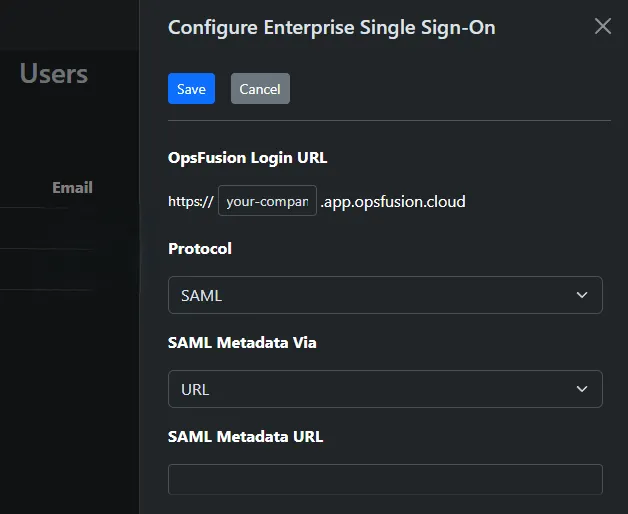
Section titled “SAML Setup”You’ll need your identity provider’s SAML metadata. Use the SAML Metadata Via dropdown to choose whether you’ll provide it as a URL or as XML, then fill in the matching field:
| Field | Description |
|---|---|
| SAML Metadata URL | A URL your identity provider publishes with its SAML configuration |
| SAML Metadata XML | The SAML metadata document itself, if your identity provider doesn’t publish a URL |
Unlike OIDC, SAML has no single standard for attribute names, so your identity provider must be configured to send these exact attribute names for your users’ info to come through correctly:
| OpsFusion Field | SAML Attribute Name |
|---|---|
| Email (required) | http://schemas.xmlsoap.org/ws/2005/05/identity/claims/emailaddress |
| First Name | http://schemas.xmlsoap.org/ws/2005/05/identity/claims/givenname |
| Last Name | http://schemas.xmlsoap.org/ws/2005/05/identity/claims/surname |
| Full Name | http://schemas.xmlsoap.org/ws/2005/05/identity/claims/name |
If your identity provider defaults to a different attribute naming scheme (for example, an urn:oid:... based scheme), check its SAML app settings for an option to customize the outgoing attribute names, and set them to the values above.
Viewing Your Configuration
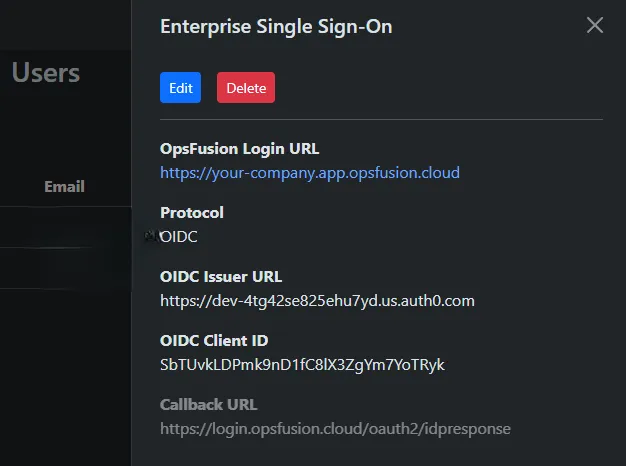
Section titled “Viewing Your Configuration”Once configured, the Enterprise Single Sign-On menu item shows a read-only summary of your current setup, with Edit and Delete options. It shows your Login URL, protocol, and provider details, plus the Callback URL to register with your identity provider. Secrets, such as the OIDC client secret, are never displayed. If you provided SAML metadata as XML, a View XML button lets you see it.
Troubleshooting
Section titled “Troubleshooting”Users signing in via SSO have a blank name or email in OpsFusion? Double check your identity provider is sending the attribute names listed above (SAML) or the standard claims (OIDC) - particularly email, which is required.
Can’t remove the Enterprise SSO configuration? If you’re currently signed in through SSO, OpsFusion blocks removal to prevent you from locking yourself out. Sign in with a non-SSO Account Owner or Account Admin to remove it.