
Billing and Subscription
Learn how to manage your OpsFusion subscription, update billing information, and understand pricing.
Overview
Section titled “Overview”OpsFusion uses a user-based subscription model with monthly billing. All subscription and payment management is handled through Paddle, our trusted merchant of record.
Subscription Model
Section titled “Subscription Model”User-Based Pricing
Section titled “User-Based Pricing”OpsFusion charges based on the number of users in your account:
- Monthly billing cycle
- Per-user pricing - Pay only for the users you need
Usage Limits
Section titled “Usage Limits”Your subscription includes generous usage limits based on your user count:
Alert Limits
Section titled “Alert Limits”- Calculation: Number of users × 1,000 alerts per month
- Example: 10 users = 10,000 alerts per month
- Account-wide: This is the total limit for your entire account, not per user
Notification Limits (SMS/Phone Calls)
Section titled “Notification Limits (SMS/Phone Calls)”- Calculation: Number of users × 200 notifications per month
- Example: 10 users = 2,000 notifications per month
- Account-wide: This is the total limit for your entire account, not per user
Paddle - Merchant of Record
Section titled “Paddle - Merchant of Record”OpsFusion uses Paddle as our merchant of record for all subscription and payment processing. This means:
- All payment information is securely stored and processed by Paddle
- Payment compliance (PCI-DSS, GDPR, etc.) is handled by Paddle
- Invoices and receipts are generated by Paddle
- Subscription management is done through Paddle’s secure portal
View Your Subscription
Section titled “View Your Subscription”To view your current subscription details:
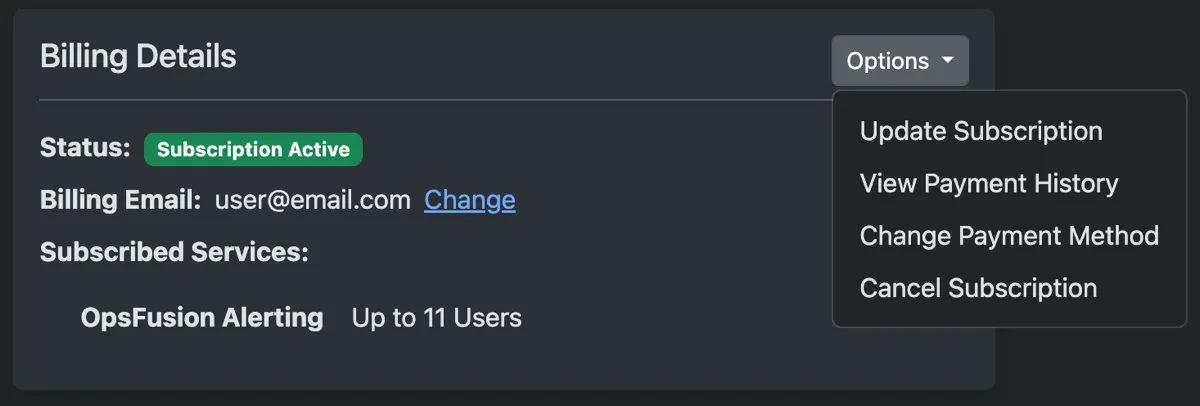
- Click on your name in the top-right corner
- Select Account from the dropdown menu
- Click on the Billing tile

Here you’ll find:
- Subscription status - Whether your subscription is active, in trial, or requires attention
- Billing email - The email address associated with your Paddle account
- Subscribed services - Your current plan and active features
Manage Your Subscription
Section titled “Manage Your Subscription”Subscription management tasks are handled through Paddle’s customer portal:
Update License Quantity
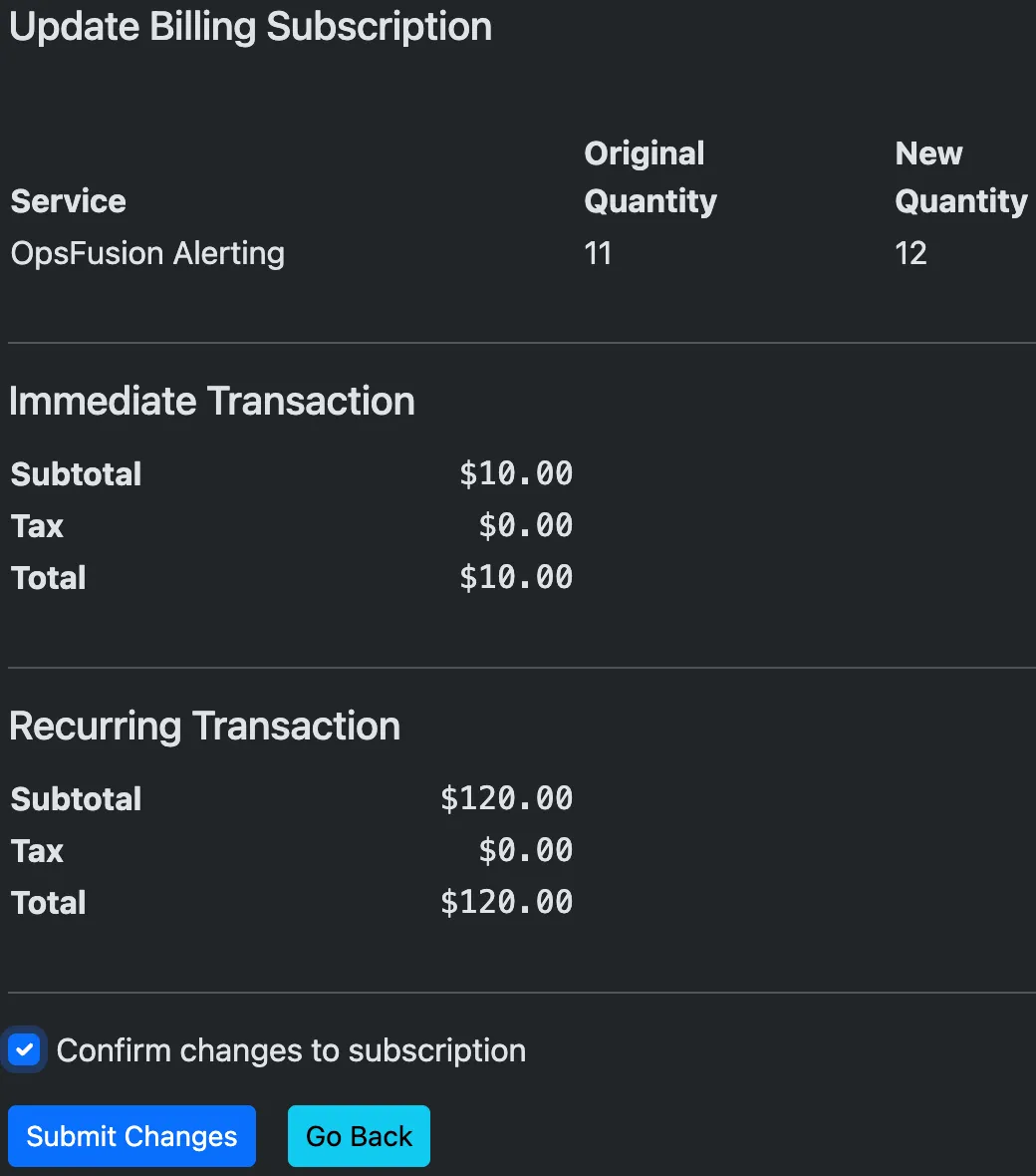
Section titled “Update License Quantity”To change the number of users on your subscription:
- Click Options - then select Update Subscription
- Adjust the user count and click Preview Changes
- Confirm the changes to subscription then click Submit Changes
Access Paddle Portal
Section titled “Access Paddle Portal”- Click Options - then select one of the options
- View Payment History
- Change Payment Method
- Cancel Subscription
- Click Billing Portal to be directed to Paddle
What You Can Do in Paddle Portal
Section titled “What You Can Do in Paddle Portal”Through Paddle’s portal, you can:
- Update payment methods - Add or change credit cards
- View billing history - Access all past invoices and receipts
- Download invoices - Get PDF copies for your records
- Update billing information - Change billing address or company details
- Cancel subscription - End your subscription if needed
Understand Your Invoice
Section titled “Understand Your Invoice”Invoices are generated by Paddle and include:
- Subscription charges - Monthly fee based on user count
- User count - Number of active users in your account
- Billing period - The month being billed
- Tax - Applicable sales tax/VAT based on your location
- Payment method - Last 4 digits of payment card used
All invoices are available in the Paddle portal and sent to your email address.
Monitor Your Usage
Section titled “Monitor Your Usage”Track your alert and notification usage to ensure you stay within your subscription limits.
For detailed usage metrics and analytics:
- View Usage Metrics for comprehensive dashboards
- Track alerts and notifications by team, type, and month
- Monitor trends and identify usage patterns
Troubleshooting
Section titled “Troubleshooting”Payment failed?
- Access Paddle portal and verify your payment method is valid
- Check with your bank for any blocks on the transaction
- Update your payment information in Paddle and retry
- Check for email from Paddle with specific payment error details
Can’t access Paddle portal?
- Verify you’re using the email address associated with your OpsFusion account
- Check your spam folder for Paddle portal access emails
- Contact support@opsfusion.cloud for assistance
Questions about usage limits?
- View detailed metrics in Usage Metrics
- Contact support@opsfusion.cloud to discuss increasing limits
Support
Section titled “Support”For billing questions or issues:
- Email support@opsfusion.cloud
- Include your Account ID in all correspondence
For Paddle-specific payment issues:
- Access the Paddle portal for payment management
- Contact Paddle support through their portal if needed