
Create Teams
Teams in OpsFusion help you organize on-call responsibilities by service, department, or any other grouping that makes sense for your organization.
What Are Teams?
Section titled “What Are Teams?”Teams are groups of users who share on-call responsibilities for specific services or areas. Each team has its own:
- On-call schedules - Define who is on-call and when
- Escalation policies - Specify what happens if alerts aren’t acknowledged
- Alert history - Track all alerts sent to the team
Step 1: Create a New Team
Section titled “Step 1: Create a New Team”To get started, create your first team in OpsFusion:
- Click Teams in the main navigation menu
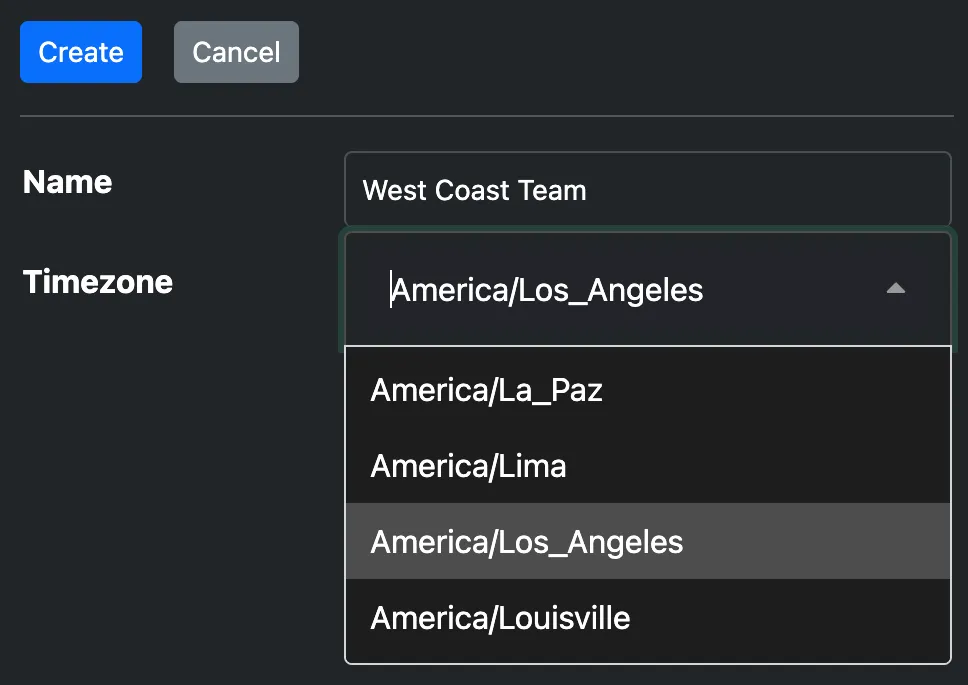
- Click the Create Team button
- Fill in the team creation form and click Create
Step 2: Add Team Members
Section titled “Step 2: Add Team Members”After creating your team, add members from the team detail page:
- Click the Members tile
- Select a user from your account
- Click Add Member to assign them to the team

Step 3: Create Additional Teams
Section titled “Step 3: Create Additional Teams”As your organization grows, you may need multiple teams to organize on-call responsibilities by service, department, or region. To create additional teams, simply follow the same steps outlined above. Each team operates independently with its own schedules, escalation policies, and alert history.
What’s Next?
Section titled “What’s Next?”Now that you’ve created your team, follow these next steps:
- Setup on-call schedules - Define rotation patterns and coverage hours
- Setup notifications - Set up email, phone call, and SMS notifications
- Create API keys - Generate API keys for sending alerts
Troubleshooting
Section titled “Troubleshooting”Can’t add users to a team?
- Ensure the users have accepted their invitation and joined your account
- Only active users can be added to teams - pending invitations must be accepted first
- See Invite Users to send invitations
Can’t create a team?
- Verify you have Account Admin or Account Owner permissions
- Contact your account administrator if you need elevated permissions
Selected the wrong time zone?
- You can edit the team settings to change the time zone after creation
- Navigate to the team page and click the Settings button to update
Can’t find your team after creating it?
- Check the Teams page in the main navigation
- Ensure you’re logged into the correct account