
Setup Notifications
Set up how you receive alerts from OpsFusion by configuring your notification devices and preferences. You can receive alerts via email, phone calls, and SMS text messages.
Overview
Section titled “Overview”OpsFusion sends notifications to your configured devices when:
- You’re on-call and an alert is triggered for your team
- An alert escalates to you
You can configure multiple notification methods and control the order in which they’re used.
Notification Methods
Section titled “Notification Methods”OpsFusion supports three notification channels:
Email notifications are enabled by default using the email address associated with your account.
Features:
- Includes full alert details and context
- Contains links to view and manage the alert
- Fastest to receive
Receive alert notifications via text message.
Features:
- Text message with alert summary
- Contains links to view and manage the alert
- Reply to acknowledge or close
Phone Call
Section titled “Phone Call”Receive voice calls for critical alerts.
Features:
- Voice call with alert details
- Press a digit to acknowledge or close the alert during the call
Step 1: Navigate to User Notifications
Section titled “Step 1: Navigate to User Notifications”- Click on your name in the top-right corner
- Select My Profile from the dropdown menu
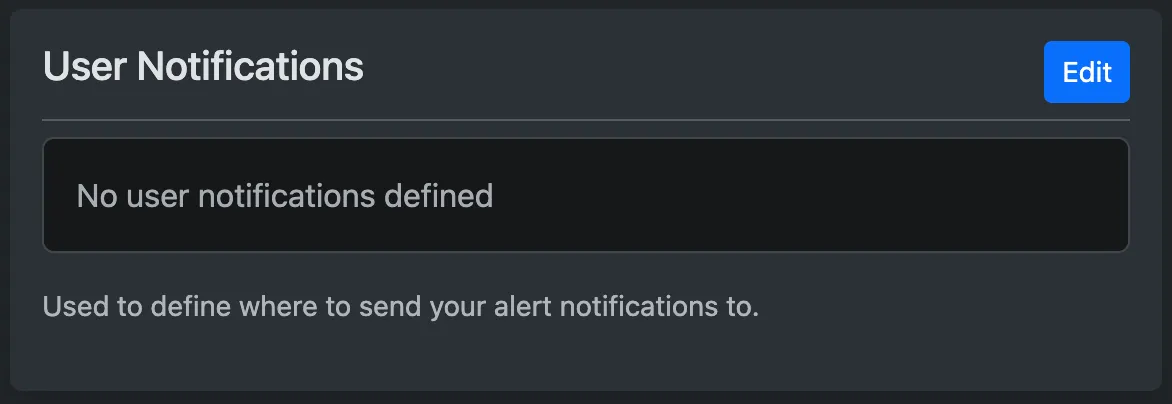
- Navigate to User Notifications and click Edit
Step 2: Verify Device
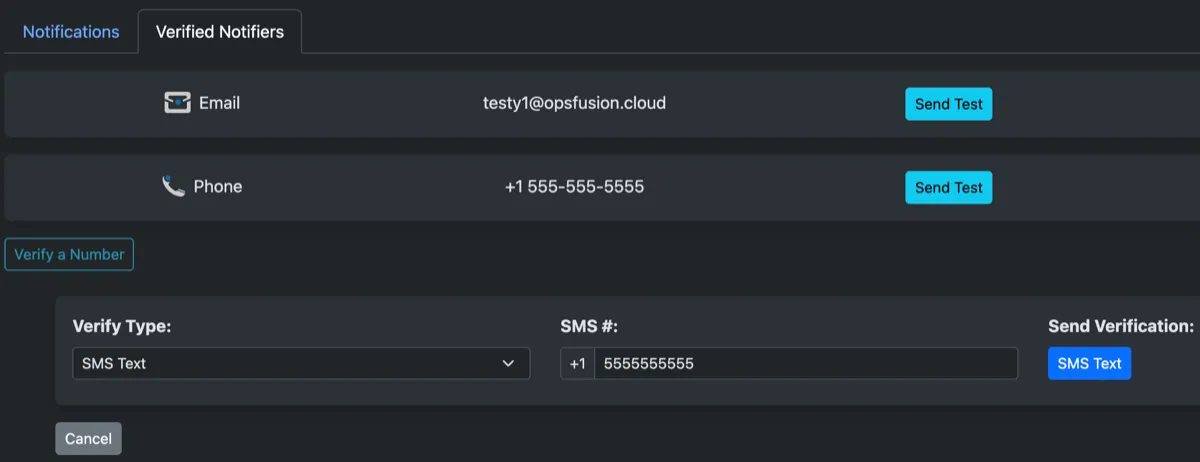
Section titled “Step 2: Verify Device”Before you can use SMS or Phone call notifications in your on-call rotations, you must verify each method independently. This ensures you can receive alerts reliably when on-call.
To verify your device:
- Go to the Verified Notifiers tab and click Verify a Number
- Select Verify Type (SMS Text or Phone Call) and enter your phone number
- Click Phone Call or SMS Text to send a verification to your device
- Follow the instructions you receive to complete verification
Step 3: Configure Notification Order
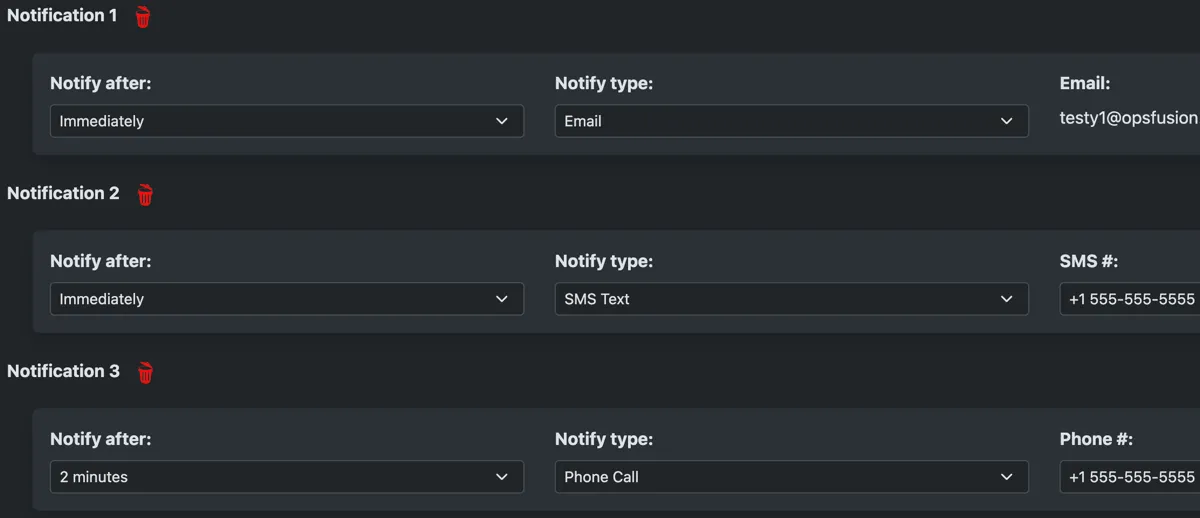
Section titled “Step 3: Configure Notification Order”The notification order determines the sequence in which OpsFusion contacts you when an alert is triggered.
Set Your Notification Order:
- Navigate to the Notifications tab and click + Another
- Configure your notification:
- Notify after - Set how long to wait before sending this notification
- Notify type - Choose your notification method (Email, SMS, or Phone Call)
- Click + Another to add additional notifications with different timing or methods
- Click Save Notifications to apply your settings
Step 4: Testing Notifications
Section titled “Step 4: Testing Notifications”Before going on-call, test that all your notification methods are working correctly.
Send a Test Notification:
- Go to the Verified Notifiers tab
- Locate the device you want to test and click Send Test
- Confirm you receive the test notification within a few seconds
What’s Next?
Section titled “What’s Next?”With your notifications configured:
- Create teams to organize your on-call rotations
- Set up on-call schedules to define when you’re on-call
- Create API keys to start receiving real alerts
- Review your team’s escalation policies
Troubleshooting
Section titled “Troubleshooting”Not receiving email notifications?
- Check your spam/junk folder
- Verify your email address is correct in profile settings
- Add alert@opsfusion.cloud to your email whitelist
- Test your email notification
Not receiving phone calls?
- Verify your phone number is correct
- Check that your phone isn’t blocking the call
- Ensure you have cellular service
- Send a test call to verify
Not receiving SMS messages?
- Verify your phone number is correct
- Check your SMS/text message settings
- Ensure you have cellular service and SMS enabled
- Send a test SMS to verify
Phone number verification not working?
- Request a new verification message
- Check that you entered the number correctly
- Try adding the number again
- Contact support@opsfusion.cloud if issues persist